
These classes are available in Ghost Admin via HTML blocks. Copy the markup and paste it into an HTML card in the editor.
Structured Data Notes
When you add an FAQ, how-to, or itinerary, follow the schema pattern shown in that component's example.
The current pattern is author-written inline schema. Add inline structured data for FAQPage, HowTo, itinerary-style ItemList, Offer, or Product only when it matches the visible section exactly and helps search engines and AI crawlers understand the page.
For FAQs, always use .al-faq-block and include the inline FAQPage script inside the block. It is required, and you must write it yourself so it matches the visible questions and answers exactly.
Legacy Schema Notes
The older single-question .al-faq pattern is legacy only. It relied on automatic schema injection and should not be used for new content.
Use the newer examples in this guide for new content, with author-written inline schema instead of the older auto-injected path.
Table of Contents Notes
Add class="toc-ignore" to any h2 or h3 you do not want listed in the "On this page" box.
Use it for sample or demonstration headings that should still show in the page body, but should not appear in the table of contents.
Colors
Theme color tokens
These are the color variables defined in the theme @theme block. Use the token-backed Tailwind utilities instead of hardcoded hex values.
The swatches below show the CSS variable name, the matching utility pattern, the hex value, and when each color should be used.
Live render
--color-sky
bg-sky, text-sky, border-sky
#6BA5F2
Use for links, informational accents, and lighter secondary highlights.
--color-mist
bg-mist, text-mist, border-mist
#CEE1F2
Use for soft backgrounds, cool secondary sections, and gentle contrast behind content.
--color-sage
bg-sage, text-sage, border-sage
#95BFBB
Use for supportive accents, positive states, and quieter emphasis than coral.
--color-seafoam
bg-seafoam, text-seafoam, border-seafoam
#E4F2F1
Use for the site’s main soft surface background and calm content containers.
--color-coral
bg-coral, text-coral, border-coral
#F25D50
Use sparingly for primary CTAs, high-priority actions, and strong emphasis.
--color-ink
bg-ink, text-ink, border-ink
#0D0D0D
Use for primary text, dark headers, and the strongest neutral contrast in the system.
--color-paper
bg-paper, text-paper, border-paper
#FFFFFF
Use for card surfaces, page background, and white-on-dark text treatments.
Typography
Font tokens
These are the typography variables defined in the theme @theme block.
--font-heading is used for headings, --font-body is used for body copy, and --font-cursive is used sparingly for decorative accent text.
Live render
--font-heading: "Fraunces", serif
--font-body: "Inter", sans-serif
--font-cursive: "Cedarville Cursive", cursive
Heading scale
Fraunces is the heading face across the theme. These examples show the current heading hierarchy used on the site.
Rendered examples below include the font size and weight so you can match them intentionally in templates and custom sections.
Live render
H1 · Fraunces · 36px mobile / 48px desktop · 600
Fraunces Heading Level One
H2 · Fraunces · 28px · 600
Fraunces Heading Level Two
H3 · Fraunces · 22px · 600
Fraunces Heading Level Three
H4 · Fraunces heading family with body-style treatment · 18px · 700 uppercase
Heading Level Four
Body sizes
Inter is the body face across the theme. These are the most common body sizes used in templates and content surfaces.
Use base for standard reading text, small for support copy and metadata, and large for intro paragraphs or key explanatory copy.
Live render
Large body · Inter · 17px · 400
This is the larger body size used for introductory copy, page intros, and more open reading layouts.
Base body · Inter · 16px · 400
This is the standard body size used for most paragraphs, UI copy, and supporting content across the theme.
Small body · Inter · 14px · 400
This is the smaller body size used for metadata, usage notes, and quieter secondary information.
Templates
Legal pages (`custom-legal.hbs`)
Assign the template in Ghost Admin using page settings, then the Template dropdown, then selecting Legal.
The template adds the left sidebar table of contents from your H2 headings, the last-updated date, breadcrumb navigation, a noindex robots meta tag, and `WebPage` plus `BreadcrumbList` JSON-LD automatically.
In the editor, write an optional HTML block with `.legal-tldr` at the top, then add H2 headings and the prose content that belongs under each section.
Optional HTML block: <div class="legal-tldr">...</div>
## Section One
Paragraph text...
## Section Two
Paragraph text...
Images
Post body images
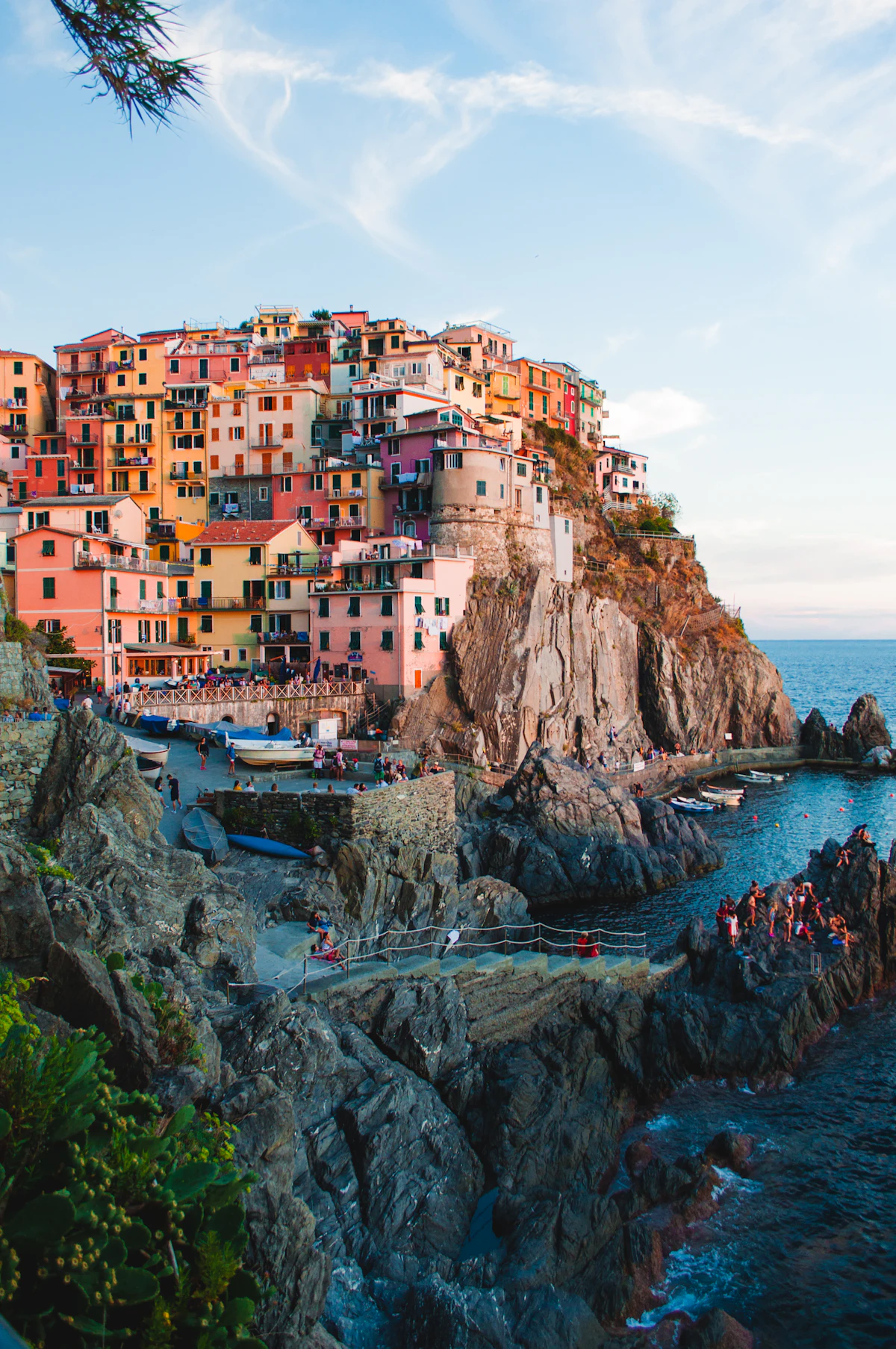
Ghost post-body images render with the taped polaroid treatment by default.
Use normal Ghost image cards for travel photos and editorial images. Clicking the image opens a larger lightbox version.
<figure class="kg-card kg-image-card kg-card-hascaption">
  <img class="kg-image" src="https://images.unsplash.com/photo-1516483638261-f4dbaf036963?auto=format&fit=crop&w=1200&q=80" alt="Family travel photo" />
  <figcaption>Default post images get the polaroid styling and click-to-zoom behavior.</figcaption>
</figure>
Live render
.al-no-polaroid
Removes the taped polaroid styling from a post-body image while keeping the click-to-zoom lightbox behavior.
Use this for screenshots, charts, and anything that should render clean and square instead of scrapbook-style.
Add the class directly to the Ghost image card when possible, or to a wrapper around the image card if you are controlling the markup yourself.
<figure class="kg-card kg-image-card al-no-polaroid">
  <img class="kg-image" src="https://images.unsplash.com/photo-1516483638261-f4dbaf036963?auto=format&fit=crop&w=1200&q=80" alt="Booking confirmation screenshot" />
  <figcaption>Use this version for screenshots and UI images.</figcaption>
</figure>
Live render
Content Classes
.legal-tldr
Creates a structured summary box that surfaces the main legal takeaways before the full document begins.
Use in an HTML block in Ghost Admin.
<div class="legal-tldr">
  <ul>
    <li>First key takeaway</li>
    <li>Second key takeaway</li>
    <li>Third key takeaway</li>
  </ul>
</div>
Live render
- Some links on the site may earn us a commission if you choose to book through them.
- That never changes what you pay, and we only recommend products we actually use or trust.
- This page explains how those partnerships work and what disclosures apply.
.al-faq
Creates a click-to-open FAQ card for short question-and-answer pairs inside post content.
DeprecatedDo not use for new content. Legacy instances will continue to function, but new FAQ sections should use .al-faq-block with inline schema instead.
Use one HTML block per FAQ item in Ghost Admin. Write the question in the <h3> and the answer in the following <p>.
Advice: keep the answer to one paragraph per card. If an answer needs multiple sections, lists, or images, it should probably be a normal content section instead of an accordion.
Legacy schema path: every .al-faq on the page contributes one question to a JavaScript-injected FAQPage block. This is fallback behavior for older content, not the preferred pattern for new posts.
<div class="al-faq">
  <h3>Do we need to book tickets in advance?</h3>
  <p>For the busiest attractions, yes. We usually book the day and time first, then build the rest of the day around that anchor.</p>
</div>
Live render
Do we need to book tickets in advance?
For the busiest attractions, yes. We usually book the day and time first, then build the rest of the day around that anchor.
.al-faq-block
Full FAQ accordion block with optional header section, per-item Lucide icons, and a hardcoded "Still have a question?" CTA bar at the bottom. Icons are author-specified via data-lucide attribute; falls back to a question-mark icon if none provided.
Every .al-faq-block must include the inline FAQPage script shown below. It is required, not optional.
Write the script yourself and make the questions and answers match the visible accordion items exactly.
<div class="al-faq-block">
  <p class="al-faq-eyebrow">FAQ</p>
  <h2 class="al-faq-title">Frequently Asked Questions</h2>
  <p class="al-faq-subtitle">Everything we get asked about full-time travel, worldschooling, Japan, and planning trips as a family.</p>
  <script type="application/ld+json">
    {
      "@context": "https://schema.org",
      "@type": "FAQPage",
      "mainEntity": [
        {
          "@type": "Question",
          "name": "How do you afford to travel full-time?",
          "acceptedAnswer": {
            "@type": "Answer",
            "text": "We sold almost everything, simplified our life, and built a budget that works for us."
          }
        },
        {
          "@type": "Question",
          "name": "How do your kids go to school?",
          "acceptedAnswer": {
            "@type": "Answer",
            "text": "We worldschool — a mix of curriculum, real-world experience, and local classes."
          }
        }
      ]
    }
  </script>
  <div class="al-faq-item">
    <div class="al-faq-trigger">
      <div class="al-faq-icon"><i data-lucide="luggage"></i></div>
      <span>How do you afford to travel full-time?</span>
      <div class="al-faq-chevron"></div>
    </div>
    <div class="al-faq-answer">
      <p>We sold almost everything, simplified our life, and built a budget that works for us.</p>
    </div>
  </div>
  <div class="al-faq-item">
    <div class="al-faq-trigger">
      <div class="al-faq-icon"><i data-lucide="graduation-cap"></i></div>
      <span>How do your kids go to school?</span>
      <div class="al-faq-chevron"></div>
    </div>
    <div class="al-faq-answer">
      <p>We worldschool — a mix of curriculum, real-world experience, and local classes.</p>
    </div>
  </div>
</div>
Live render
FAQ
Frequently Asked Questions
Everything we get asked about full-time travel, worldschooling, Japan, and planning trips as a family.
We sold almost everything, simplified our life, and built a budget that works for us.
We worldschool — a mix of curriculum, real-world experience, and local classes.
.al-coupon
Creates a coupon card with a copyable discount code and an optional full-width CTA button.
LegacyThe basic structure still works, but the recommended version below is the default for new content.
Use one HTML block in Ghost Admin. Put the product or partner name in the <h3>, the offer copy in the <p>, and wrap the coupon code itself in <strong>.
Advice: keep the offer sentence short and only use one <strong> code per coupon card. The link is optional, but if you include one it should be the main action you want readers to take. Readers can click the code itself to copy it.
<div class="al-coupon">
  <h3>Holafly eSIM</h3>
  <p>Use code <strong>ADAMANDLINDS</strong> for 5% off your eSIM.</p>
  <a href="https://holafly.com">Get your eSIM</a>
</div>
Live render
.al-coupon (recommended)
Coupon block with a ticket-style layout. Displays a Lucide icon in a left panel, brand name, optional description, a click-to-copy discount code, discount text, a CTA button, and a handwritten annotation. Icon is author-specified via data-coupon-icon attribute, falling back to badge-percent. Annotation is author-specified via data-note, falling back to "Click to use this code!".
<div class="al-coupon" data-coupon-icon="card-sim" data-note="Click to visit Holafly and use this code!">
  <h3>Holafly eSIM</h3>
  <p>Stay connected anywhere in the world.</p>
  <p>Use code <strong>ADAMANDLINDS</strong> for 5% off your eSIM.</p>
  <a href="https://holafly.com" target="_blank">Get your eSIM</a>
</div>
Live render
Holafly eSIM
Stay connected anywhere in the world.
Use code ADAMANDLINDS for 5% off your eSIM.
Get your eSIM.al-cta
Creates a promotional callout card with a prominent heading, optional supporting text, and one or more stacked full-width CTA buttons.
Use one HTML block in Ghost Admin. Start with the <h3>, then add an optional <p>, then one or more <a> links. The first link renders as the primary coral button. If you add a second link, it renders as the secondary outline button.
Advice: keep the heading direct and action-oriented. This works best when the reader already has enough context and just needs a clear next step.
<div class="al-cta">
  <h3>Ready to book USJ?</h3>
  <p>Use code ADAMANDLINDSKLOOK at checkout for extra savings.</p>
  <a href="https://klook.com">Book on Klook</a>
  <a href="https://klook.com">Read our Klook guide</a>
</div>
Live render
Ready to book USJ?
Use code ADAMANDLINDSKLOOK at checkout for extra savings.
Book on Klook Read our Klook guide.al-howto
Creates a step-by-step how-to card with auto-numbered steps, an optional image per step, and an optional primary CTA button at the bottom.
Use one HTML block in Ghost Admin. Put the section <h2> outside the component, then add one <li> per step inside the <ol>. Each step requires an <h3>. The image and paragraph are optional.
Advice: keep each step focused on one action. If you use images, use screenshots or booking flow images that genuinely help the reader move through the task.
If you want schema here, add an inline HowTo JSON-LD script beside this section and make sure it matches the visible steps exactly.
<h2>How to Buy a JR Pass on Klook</h2>
<script type="application/ld+json">
  {
    "@context": "https://schema.org",
    "@type": "HowTo",
    "name": "How to Buy a JR Pass on Klook",
    "step": [
      {
        "@type": "HowToStep",
        "name": "Go to the Klook website",
        "text": "Search for JR Pass or use our direct link below."
      },
      {
        "@type": "HowToStep",
        "name": "Select your pass duration",
        "text": "Choose 7, 14, or 21 days depending on your itinerary."
      }
    ]
  }
</script>
<div class="al-howto">
  <ol>
    <li>
      <img src="https://images.unsplash.com/photo-1517760444937-f6397edcbbcd?auto=format&fit=crop&w=400&q=80" alt="Laptop open on a booking website">
      <h3>Go to the Klook website</h3>
      <p>Search for JR Pass or use our direct link below.</p>
    </li>
    <li>
      <h3>Select your pass duration</h3>
      <p>Choose 7, 14, or 21 days depending on your itinerary.</p>
    </li>
  </ol>
  <a href="https://www.klook.com/">Buy JR Pass on Klook</a>
</div>
Live render
How to Buy a JR Pass on Klook
-
Go to the Klook website
Search for JR Pass or use our direct link below.
-
Select your pass duration
Choose 7, 14, or 21 days depending on your itinerary.

.al-itinerary
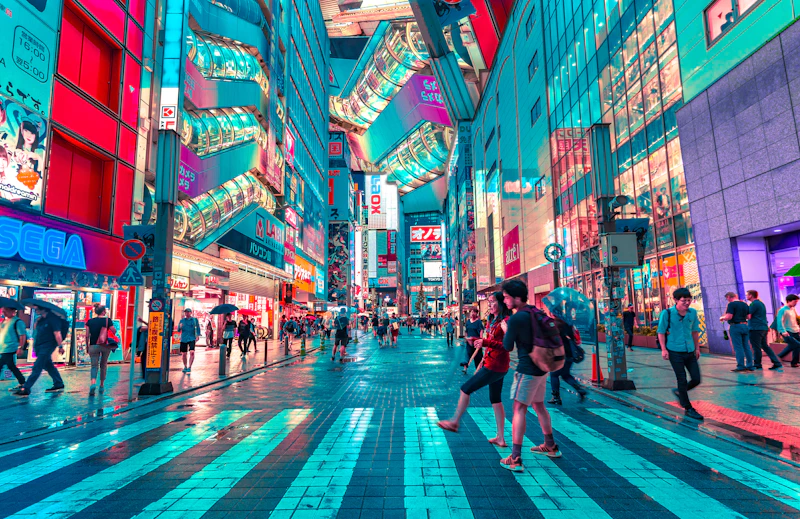
Creates a visual itinerary card for day-by-day or time-based plans, with an optional header block, optional images, and a timeline-style marker for each stop.
Use one HTML block in Ghost Admin. Add an optional .al-itinerary-header first. For each stop, use one direct child <div>. If you want a day-based marker, put two <p> labels before the <h3>. If you want a time-based marker, use one <p> label before the <h3>.
Advice: keep each stop tight. This works best for 3 to 6 entries, each with a short title and one supporting sentence.
If you want schema here, add an inline ItemList JSON-LD script beside this section and make sure it matches the visible stops exactly.
<script type="application/ld+json">
  {
    "@context": "https://schema.org",
    "@type": "ItemList",
    "name": "10 Days in Japan",
    "itemListElement": [
      {
        "@type": "ListItem",
        "position": 1,
        "name": "Tokyo",
        "description": "Temples, neighborhoods, incredible food, and getting our bearings in Japan."
      },
      {
        "@type": "ListItem",
        "position": 2,
        "name": "Kyoto",
        "description": "Shrines, bamboo forests, and the most beautiful streets."
      }
    ]
  }
</script>
<div class="al-itinerary">
  <div class="al-itinerary-header">
    <p>Our Itinerary</p>
    <h2>10 Days in Japan</h2>
    <p>A perfect first trip that hits the highlights without feeling rushed.</p>
  </div>
  <div>
    <img src="https://images.unsplash.com/photo-1540959733332-eab4deabeeaf?auto=format&fit=crop&w=800&q=80" alt="Tokyo at dusk">
    <p>Day</p>
    <p>1-3</p>
    <h3>Tokyo</h3>
    <p>Temples, neighborhoods, incredible food, and getting our bearings in Japan.</p>
  </div>
  <div>
    <img src="https://images.unsplash.com/photo-1493976040374-85c8e12f0c0e?auto=format&fit=crop&w=800&q=80" alt="Kyoto street at sunset">
    <p>Day</p>
    <p>5-7</p>
    <h3>Kyoto</h3>
    <p>Shrines, bamboo forests, and the most beautiful streets.</p>
  </div>
</div>
Live render · Day-based
Our Itinerary
10 Days in Japan
A perfect first trip that hits the highlights without feeling rushed.
Day
1-3
Tokyo
Temples, neighborhoods, incredible food, and getting our bearings in Japan.

Day
5-7
Kyoto
Shrines, bamboo forests, and the most beautiful streets.
<script type="application/ld+json">
  {
    "@context": "https://schema.org",
    "@type": "ItemList",
    "name": "Walking Tour in Taipei",
    "itemListElement": [
      {
        "@type": "ListItem",
        "position": 1,
        "name": "Meet at the Metro Station",
        "description": "We start at Exit 3, north side."
      },
      {
        "@type": "ListItem",
        "position": 2,
        "name": "Explore Dadaocheng",
        "description": "Historic warehouses, tea shops, and the best scallion pancakes."
      }
    ]
  }
</script>
<div class="al-itinerary">
  <div class="al-itinerary-header">
    <p>Our Itinerary</p>
    <h2>Walking Tour in Taipei</h2>
  </div>
  <div>
    <p>8:00 AM</p>
    <h3>Meet at the Metro Station</h3>
    <p>We start at Exit 3, north side.</p>
  </div>
  <div>
    <p>9:00 AM</p>
    <h3>Explore Dadaocheng</h3>
    <p>Historic warehouses, tea shops, and the best scallion pancakes.</p>
  </div>
</div>
Live render · Time-based
Our Itinerary
Walking Tour in Taipei
8:00 AM
Meet at the Metro Station
We start at Exit 3, north side.
9:00 AM
Explore Dadaocheng
Historic warehouses, tea shops, and the best scallion pancakes.
.al-map
Creates an interactive map with a generated Leaflet panel, clickable stop list, optional route lines, optional highlighted regions, transport mode icons, and optional affiliate CTAs.
Use one HTML block in Ghost Admin. Paste a wrapper with .al-map, add a plain <h2>, an optional subtitle using data-map-subtitle, then a child <script type="application/json" class="al-map-data"> containing the map data.
Required place fields: name, lat, lng. Optional place fields: desc, type, cta, and color. Supported place types: stop, hotel, restaurant, attraction.
Required segment fields: from, to, mode. Optional segment fields: color and geometry. Supported modes: train, bus, flight, ferry, cruise, drive, car, motorbike, walk, metro, taxi.
Optional map-level style fields: markerColor, routeColor, endpointColor, futureRouteColor, regionColor, regionFillColor, regionFillOpacity. If you omit them, the current theme defaults stay in place, so existing maps keep working unchanged.
Optional regions array: each region can use points with [lat, lng] pairs or a geojson object, plus optional name, desc, cta, color, fillColor, weight, opacity, and fillOpacity. Use "segments": [] when you want markers only, or regions plus markers, with no route lines.
What it can do: multi-city rail or flight trips, city highlight maps with no route, hotel recommendation maps with booking links, walking routes with sequential stop markers, and neighbourhood overlays that shade a specific district.
<div class="al-map">
  <h2>Map title</h2>
  <p data-map-subtitle>Optional subtitle text.</p>
  <script type="application/json" class="al-map-data">
  {
    "style": {
      "markerColor": "#95BFBB",
      "routeColor": "#6BA5F2",
      "regionColor": "#F25D50",
      "regionFillColor": "#FDE2DF"
    },
    "places": [
      { "name": "Tokyo", "lat": 35.6895, "lng": 139.6917, "color": "#95BFBB" },
      {
        "name": "Aman Tokyo",
        "lat": 35.6762,
        "lng": 139.7503,
        "type": "hotel",
        "desc": "Optional description shown in sidebar and popup.",
        "cta": { "label": "Check availability", "url": "https://booking.com/...", "affiliate": true }
      }
    ],
    "regions": [
      {
        "name": "Ginza core",
        "points": [[35.6724, 139.7649], [35.6688, 139.7756], [35.6767, 139.7787], [35.6806, 139.7678]],
        "color": "#F25D50",
        "fillColor": "#FDE2DF"
      }
    ],
    "segments": [
      { "from": "Tokyo", "to": "Aman Tokyo", "mode": "taxi", "color": "#F25D50" }
    ]
  }
  </script>
</div>
Live render · Example 1: Multi-city tour
Japan highlights tour
Tokyo to Kyoto, Osaka, Hiroshima, and back again.
<div class="al-map">
  <h2>Japan highlights tour</h2>
  <p data-map-subtitle>Tokyo to Kyoto, Osaka, Hiroshima, and back again.</p>
  <script type="application/json" class="al-map-data">
  {
    "places": [
      { "name": "Tokyo", "lat": 35.6895, "lng": 139.6917 },
      { "name": "Kyoto", "lat": 35.0116, "lng": 135.7681 },
      { "name": "Osaka", "lat": 34.6937, "lng": 135.5023 },
      { "name": "Hiroshima", "lat": 34.3853, "lng": 132.4553 }
    ],
    "segments": [
      { "from": "Tokyo", "to": "Kyoto", "mode": "train" },
      { "from": "Kyoto", "to": "Osaka", "mode": "bus" },
      { "from": "Osaka", "to": "Hiroshima", "mode": "train" },
      { "from": "Hiroshima", "to": "Tokyo", "mode": "flight" }
    ]
  }
  </script>
</div>
Live render · Example 2: City highlights, no route lines
Taipei day tour
Easy family-friendly highlights around Taipei in one day.
<div class="al-map">
  <h2>Taipei day tour</h2>
  <p data-map-subtitle>Easy family-friendly highlights around Taipei in one day.</p>
  <script type="application/json" class="al-map-data">
  {
    "places": [
      { "name": "Taipei 101", "lat": 25.0339, "lng": 121.5645, "desc": "Formerly the tallest building in the world and still one of the city's must-see landmarks." },
      { "name": "Chiang Kai-shek Memorial Hall", "lat": 25.0346, "lng": 121.5218, "desc": "Grand public square with dramatic architecture, gardens, and hourly guard-changing ceremonies." },
      { "name": "Longshan Temple", "lat": 25.0372, "lng": 121.4999, "desc": "One of Taipei's most famous temples, filled with history, incense, carvings, and local worship." },
      { "name": "Ximending", "lat": 25.0421, "lng": 121.5078, "desc": "A lively shopping and street food district known for neon signs, youth culture, and people-watching." },
      { "name": "Dadaocheng", "lat": 25.0566, "lng": 121.5095, "desc": "A historic riverside neighborhood with old tea shops, traditional medicine stores, and restored architecture." },
      { "name": "Raohe Night Market", "lat": 25.0509, "lng": 121.5777, "desc": "A classic Taipei night market with lanterns, street food, and the famous black pepper buns." }
    ],
    "segments": []
  }
  </script>
</div>
Live render · Example 3: Hotel picks with affiliate CTAs
Where we stayed in Tokyo
Three hotels we've actually stayed in, across different budgets and neighbourhoods.
<div class="al-map">
  <h2>Where we stayed in Tokyo</h2>
  <p data-map-subtitle>Three hotels we've actually stayed in, across different budgets and neighbourhoods.</p>
  <script type="application/json" class="al-map-data">
  {
    "places": [
      {
        "name": "Aman Tokyo",
        "lat": 35.6762,
        "lng": 139.7503,
        "type": "hotel",
        "desc": "Ultra-luxe tower hotel in Otemachi with jaw-dropping city views and exceptional service.",
        "cta": { "label": "Check availability", "url": "https://www.booking.com/hotel/jp/aman-tokyo.html", "affiliate": true }
      },
      {
        "name": "Park Hyatt Tokyo",
        "lat": 35.6861,
        "lng": 139.6922,
        "type": "hotel",
        "desc": "The Lost in Translation hotel. Stunning Shinjuku views, excellent New York Bar on the 52nd floor.",
        "cta": { "label": "Check availability", "url": "https://www.booking.com/hotel/jp/park-hyatt-tokyo.html", "affiliate": true }
      },
      {
        "name": "Trunk Hotel",
        "lat": 35.6641,
        "lng": 139.7095,
        "type": "hotel",
        "desc": "A design-forward boutique in Shibuya. Smaller, younger, more neighbourhood feel.",
        "cta": { "label": "Check availability", "url": "https://www.booking.com/hotel/jp/trunk.html", "affiliate": true }
      }
    ],
    "segments": []
  }
  </script>
</div>
Live render · Example 4: Walking tour
Paris on foot
A full day walking the Left Bank to Le Marais.
<div class="al-map">
  <h2>Paris on foot</h2>
  <p data-map-subtitle>A full day walking the Left Bank to Le Marais.</p>
  <script type="application/json" class="al-map-data">
  {
    "places": [
      { "name": "Eiffel Tower", "lat": 48.8584, "lng": 2.2945, "desc": "Start early to beat the crowds. The view from the second floor is better than the top." },
      { "name": "Champ de Mars", "lat": 48.8556, "lng": 2.2986, "desc": "A wide green lawn perfect for a picnic breakfast after the tower. Grab supplies from a nearby boulangerie." },
      { "name": "Musée d'Orsay", "lat": 48.8600, "lng": 2.3266, "desc": "The Impressionist collection is unmissable. Allow 2 hours minimum. Book tickets in advance." },
      { "name": "Pont Neuf", "lat": 48.8570, "lng": 2.3412, "desc": "Paris's oldest bridge and a perfect mid-walk photo stop. The bookstalls along the Seine start just east." },
      { "name": "Notre-Dame Cathedral", "lat": 48.8530, "lng": 2.3499, "desc": "Reconstruction is underway but the exterior and the Île de la Cité are still worth the detour." },
      { "name": "Le Marais", "lat": 48.8566, "lng": 2.3588, "desc": "End the day here. Great falafel on Rue des Rosiers, gallery hopping on Rue de Bretagne, and lively bars by evening." }
    ],
    "segments": [
      { "from": "Eiffel Tower", "to": "Champ de Mars", "mode": "walk" },
      { "from": "Champ de Mars", "to": "Musée d'Orsay", "mode": "walk" },
      { "from": "Musée d'Orsay", "to": "Pont Neuf", "mode": "walk" },
      { "from": "Pont Neuf", "to": "Notre-Dame Cathedral", "mode": "walk" },
      { "from": "Notre-Dame Cathedral", "to": "Le Marais", "mode": "walk" }
    ]
  }
  </script>
</div>
Live render · Example 5: Neighbourhood highlight
Shibuya neighbourhood guide
Shade the core area, then pin the stops that are actually worth your time.
<div class="al-map">
  <h2>Shibuya neighbourhood guide</h2>
  <p data-map-subtitle>Shade the core area, then pin the stops that are actually worth your time.</p>
  <script type="application/json" class="al-map-data">
  {
    "style": {
      "markerColor": "#0D0D0D",
      "regionColor": "#F25D50",
      "regionFillColor": "#FDE2DF",
      "regionFillOpacity": 0.35
    },
    "places": [
      { "name": "Shibuya Scramble Crossing", "lat": 35.6595, "lng": 139.7005, "desc": "Start here, then branch outward once the girls have seen the crossing." },
      { "name": "Miyashita Park", "lat": 35.6604, "lng": 139.7026, "desc": "Good rooftop break point with shops, food, and space to reset." },
      { "name": "Shibuya Sky", "lat": 35.6580, "lng": 139.7016, "desc": "Best timed near sunset. Reserve in advance." }
    ],
    "regions": [
      {
        "name": "Central Shibuya",
        "desc": "This is the compact section we usually keep families inside on a short first visit.",
        "points": [
          [35.6642, 139.6962],
          [35.6634, 139.7067],
          [35.6555, 139.7088],
          [35.6544, 139.6976]
        ]
      }
    ],
    "segments": []
  }
  </script>
</div>
.al-features
Creates a feature list card with optional intro copy, icon-led list items, an optional muted footnote, and stacked primary/secondary CTA buttons.
Use one HTML block in Ghost Admin. The <ul> is required. Add data-icon on each <li> to choose any Lucide icon name that exists in the theme's Lucide bundle. If you leave it off, or use a name that doesn't exist, the list item falls back to check.
Advice: keep each feature line short and scannable. Use .al-footnote only for small disclaimers or caveats that should sit below the list, not as a second body paragraph.
<div class="al-features">
  <h3>Why We Love Holafly</h3>
  <p>Optional supporting text.</p>
  <ul>
    <li data-icon="check">Unlimited data in 170+ countries</li>
    <li data-icon="wifi">No physical SIM needed</li>
    <li data-icon="zap">Works the moment you land</li>
  </ul>
  <p class="al-footnote">* Unlimited subject to fair use policy.</p>
  <a href="#">Get your eSIM</a>
  <a href="#">Read our review</a>
</div>
Live render
Why We Love Holafly
Optional supporting text.
- Unlimited data in 170+ countries
- No physical SIM needed
- Works the moment you land
* Unlimited subject to fair use policy.
Get your eSIM Read our review.al-tip
Creates a soft sage tip callout with an automatically injected lightbulb icon.
Use one HTML block in Ghost Admin with a single wrapper and paragraph. If the paragraph includes nested markup like <strong>, wrap the full text in a <span> inside the paragraph.
<div class="al-tip">
  <p><span>Pro tip: arrive at <strong>USJ</strong> right when the gates open.</span></p>
</div>
Live render
Pro tip: arrive at USJ right when the gates open.
.al-warning
Creates a coral warning callout with an automatically injected triangle-alert icon.
Use one HTML block in Ghost Admin with a single wrapper and paragraph. If the paragraph includes nested markup like <strong>, wrap the full text in a <span> inside the paragraph.
<div class="al-warning">
  <p><span>Warning: <strong>Express Pass</strong> sells out on peak days. Book in advance.</span></p>
</div>
Live render
Warning: Express Pass sells out on peak days. Book in advance.
.al-info
Creates a mist-blue info callout with an automatically injected info icon.
Use one HTML block in Ghost Admin with a single wrapper and paragraph. If the paragraph includes nested markup like <strong>, wrap the full text in a <span> inside the paragraph.
<div class="al-info">
  <p><span>Note: The <strong>JR Pass</strong> does not cover the Yumesaki Line to USJ.</span></p>
</div>
Live render
Note: The JR Pass does not cover the Yumesaki Line to USJ.
.al-related
Creates a muted related-reading card with optional intro copy and one or more equal-weight reading-list links.
Use one HTML block in Ghost Admin. The links are required. Add an optional <h3> and optional supporting <p> above them if needed.
Advice: use this for supporting articles that help the reader go deeper, not for affiliate actions or primary booking prompts.
<div class="al-related">
  <h3>Related Reading</h3>
  <p>Optional supporting text.</p>
  <a href="/japan-rail-pass/">Is the JR Pass Worth It?</a>
  <a href="/tokyo-with-kids/">Tokyo With Kids: Full Guide</a>
  <a href="/holafly-japan/">Best eSIM for Japan</a>
</div>
Live render
.al-video
Creates a responsive 16:9 video wrapper for YouTube and other iframe embeds inside post content.
Use one HTML block in Ghost Admin. Wrap a single <iframe> in .al-video and use the provider's embed URL, not the regular watch-page URL.
Advice: for YouTube, use https://www.youtube.com/embed/VIDEO_ID. Some videos disable embedding, so if you see "refused to connect," test a different video or confirm embedding is allowed on YouTube.
<div class="al-video">
  <iframe src="https://www.youtube.com/embed/jNQXAC9IVRw" title="Me at the zoo" frameborder="0" allowfullscreen></iframe>
</div>
Live render
.al-youtube-facade
Creates a click-to-load YouTube facade that keeps the film-card styling but delays the player until the reader clicks Play.
Use this for future YouTube embeds. Keep the wrapper classes exactly as shown, set the 11-character YouTube ID in data-youtube-id, set the visible title in data-youtube-title, and keep one fallback link to the standard YouTube watch URL.
Advice: this markup is the contract for any future content migration. Existing raw iframe embeds still work, but new YouTube blocks should prefer this facade.
<div
  class="al-video al-youtube-facade"
  data-youtube-id="jNQXAC9IVRw"
  data-youtube-title="Me at the zoo">
  <a
    class="al-youtube-facade__fallback"
    href="https://www.youtube.com/watch?v=jNQXAC9IVRw">
    Watch Me at the zoo on YouTube
  </a>
</div>
Live render
.al-disclosure
Creates a small, muted disclosure footnote for affiliate or sponsorship boilerplate.
Use one HTML block in Ghost Admin with a single wrapper and paragraph. The script will automatically append a link to the full affiliate disclosure page.
Advice: keep this short and factual. It should read like legal context, not promotional copy.
<div class="al-disclosure">
  <p>This post contains affiliate links. If you book through our links we may earn a small commission at no extra cost to you.</p>
</div>
Live render
This post contains affiliate links. If you book through our links we may earn a small commission at no extra cost to you.
.al-compare
Creates a responsive comparison grid for plan, ticket, or product cards, with optional featured emphasis on one option.
Use one HTML block in Ghost Admin. Add one inner <div> per card. To highlight one option, add class="al-featured" and an optional data-badge value. If you omit data-badge, the badge defaults to Most Popular.
Advice: keep the first paragraph short because it becomes the eyebrow label. Use the second paragraph for the key differentiator and the third for a short explanation.
<div class="al-compare">
  <div>
    <p>Light Plan</p>
    <h3>$49.90<span>/month</span></h3>
    <p>25GB across 160+ countries</p>
    <p>One eSIM, one monthly fee, no surprises.</p>
  </div>
  <div class="al-featured" data-badge="Most Popular">
    <p>Unlimited Plan</p>
    <h3>$64.90<span>/month</span></h3>
    <p>Unlimited data, 160+ countries</p>
    <p>What we actually use. Hotspot included.</p>
  </div>
  <div>
    <p>Regional Plan</p>
    <h3>$29.90<span>/month</span></h3>
    <p>10GB across 30+ countries</p>
    <p>Good for shorter trips.</p>
  </div>
</div>
Live render
Light Plan
$49.90/month
25GB across 160+ countries
One eSIM, one monthly fee, no surprises.
Unlimited Plan
$64.90/month
Unlimited data, 160+ countries
What we actually use. Hotspot included.
Regional Plan
$29.90/month
10GB across 30+ countries
Good for shorter trips.
Tables
.al-table-default
Creates a clean fully bordered table with an ink header row for general travel reference content.
Add the class directly to the <table>. The script automatically wraps it for horizontal scrolling on smaller screens, so authors should not add their own overflow wrapper.
<table class="al-table-default">
  <thead>
    <tr>
      <th>City</th>
      <th>Best For</th>
      <th>Typical Stay</th>
    </tr>
  </thead>
  <tbody>
    <tr>
      <td>Tokyo</td>
      <td>First trip to Japan</td>
      <td>5 nights</td>
    </tr>
    <tr>
      <td>Kyoto</td>
      <td>Temples and slower days</td>
      <td>3 nights</td>
    </tr>
    <tr>
      <td>Osaka</td>
      <td>Food and family attractions</td>
      <td>3 nights</td>
    </tr>
  </tbody>
</table>
Live render
| City | Best For | Typical Stay |
|---|---|---|
| Tokyo | First trip to Japan | 5 nights |
| Kyoto | Temples and slower days | 3 nights |
| Osaka | Food and family attractions | 3 nights |
.al-table-coral
Creates a fully bordered table with a coral header row for stronger emphasis.
Use this when the table supports a conversion-oriented section and can carry a little more visual weight than the default table.
<table class="al-table-coral">
  <thead>
    <tr>
      <th>Pass</th>
      <th>Who It Fits</th>
      <th>Starting Price</th>
    </tr>
  </thead>
  <tbody>
    <tr>
      <td>USJ 1-Day Studio Pass</td>
      <td>Single park day</td>
      <td>From ¥8,600</td>
    </tr>
    <tr>
      <td>Express Pass 4</td>
      <td>Peak season visit</td>
      <td>From ¥11,800</td>
    </tr>
    <tr>
      <td>Express Pass 7</td>
      <td>Max rides in one day</td>
      <td>From ¥16,800</td>
    </tr>
  </tbody>
</table>
Live render
| Pass | Who It Fits | Starting Price |
|---|---|---|
| USJ 1-Day Studio Pass | Single park day | From ¥8,600 |
| Express Pass 4 | Peak season visit | From ¥11,800 |
| Express Pass 7 | Max rides in one day | From ¥16,800 |
.al-table-sage
Creates a fully bordered table with a sage header row for softer planning content.
This works well for itinerary pacing, packing lists, and calmer informational sections.
<table class="al-table-sage">
  <thead>
    <tr>
      <th>Season</th>
      <th>Why We Like It</th>
      <th>Tradeoff</th>
    </tr>
  </thead>
  <tbody>
    <tr>
      <td>Spring</td>
      <td>Cherry blossoms and mild days</td>
      <td>Crowds are intense</td>
    </tr>
    <tr>
      <td>Summer</td>
      <td>Festivals and long daylight</td>
      <td>Hot and humid</td>
    </tr>
    <tr>
      <td>Autumn</td>
      <td>Great foliage and cooler weather</td>
      <td>Popular hotel dates</td>
    </tr>
  </tbody>
</table>
Live render
| Season | Why We Like It | Tradeoff |
|---|---|---|
| Spring | Cherry blossoms and mild days | Crowds are intense |
| Summer | Festivals and long daylight | Hot and humid |
| Autumn | Great foliage and cooler weather | Popular hotel dates |
.al-table-striped
Creates a clean table with a sage header and alternating odd-row seafoam tint for easier scanning.
Use striped rows when the table has several entries and readers need to compare lines quickly.
<table class="al-table-striped">
  <thead>
    <tr>
      <th>Airport</th>
      <th>Best Transfer</th>
      <th>Typical Time</th>
    </tr>
  </thead>
  <tbody>
    <tr>
      <td>Narita</td>
      <td>Narita Express</td>
      <td>60 to 75 min</td>
    </tr>
    <tr>
      <td>Haneda</td>
      <td>Keikyu or Monorail</td>
      <td>25 to 40 min</td>
    </tr>
    <tr>
      <td>Kansai</td>
      <td>Haruka Express</td>
      <td>50 to 75 min</td>
    </tr>
  </tbody>
</table>
Live render
| Airport | Best Transfer | Typical Time |
|---|---|---|
| Narita | Narita Express | 60 to 75 min |
| Haneda | Keikyu or Monorail | 25 to 40 min |
| Kansai | Haruka Express | 50 to 75 min |
.al-table-minimal
Creates a light table with only horizontal dividers and a sage-accented header rule.
Use this when the table should feel editorial and unobtrusive instead of heavily boxed in.
<table class="al-table-minimal">
  <thead>
    <tr>
      <th>Area</th>
      <th>Why Stay There</th>
      <th>Best For</th>
    </tr>
  </thead>
  <tbody>
    <tr>
      <td>Shinjuku</td>
      <td>Big station and lots of hotels</td>
      <td>First-time visitors</td>
    </tr>
    <tr>
      <td>Ueno</td>
      <td>Easy Skyliner access</td>
      <td>Families and museums</td>
    </tr>
    <tr>
      <td>Asakusa</td>
      <td>Quieter evenings and local feel</td>
      <td>Slower trips</td>
    </tr>
  </tbody>
</table>
Live render
| Area | Why Stay There | Best For |
|---|---|---|
| Shinjuku | Big station and lots of hotels | First-time visitors |
| Ueno | Easy Skyliner access | Families and museums |
| Asakusa | Quieter evenings and local feel | Slower trips |
.al-table-compare
Creates a brand comparison table where the first column acts as a highlighted feature label.
Use this for side-by-side comparisons where each row needs a clear category label on the left.
<table class="al-table-compare">
  <thead>
    <tr>
      <th>Feature</th>
      <th>Holafly</th>
      <th>Airalo</th>
      <th>Local SIM</th>
    </tr>
  </thead>
  <tbody>
    <tr>
      <td>Unlimited Data</td>
      <td><span class="al-check">✓</span></td>
      <td><span class="al-cross">✗</span></td>
      <td><span class="al-cross">✗</span></td>
    </tr>
    <tr>
      <td>Works on Arrival</td>
      <td><span class="al-check">✓</span></td>
      <td><span class="al-check">✓</span></td>
      <td><span class="al-cross">✗</span></td>
    </tr>
    <tr>
      <td>No ID Required</td>
      <td><span class="al-check">✓</span></td>
      <td><span class="al-check">✓</span></td>
      <td><span class="al-cross">✗</span></td>
    </tr>
    <tr>
      <td>Family Plan</td>
      <td><span class="al-check">✓</span></td>
      <td><span class="al-cross">✗</span></td>
      <td><span class="al-cross">✗</span></td>
    </tr>
    <tr>
      <td>Hotspot Included</td>
      <td><span class="al-check">✓</span></td>
      <td><span class="al-cross">✗</span></td>
      <td><span class="al-cross">✗</span></td>
    </tr>
  </tbody>
</table>
Live render
| Feature | Holafly | Airalo | Local SIM |
|---|---|---|---|
| Unlimited Data | ✓ | ✗ | ✗ |
| Works on Arrival | ✓ | ✓ | ✗ |
| No ID Required | ✓ | ✓ | ✗ |
| Family Plan | ✓ | ✗ | ✗ |
| Hotspot Included | ✓ | ✗ | ✗ |
Icons
Basic inline icon
Use a plain <i> tag with a data-lucide attribute to render any Lucide icon inline in post content.
Copy and paste the markup into an HTML block in Ghost Admin, or inline inside another HTML structure.
<p>Find us near the station <i data-lucide="map-pin"></i></p>Live render
Find us near the station
Icon sizing
Set icon size directly with inline width and height styles when you need tighter control in post content.
These examples use the same icon at 16, 24, and 32 pixels.
<i data-lucide="map-pin" style="width:16px;height:16px"></i>
<i data-lucide="map-pin" style="width:24px;height:24px"></i>
<i data-lucide="map-pin" style="width:32px;height:32px"></i>
Live render
Icon color
Change icon color with inline styles when you need a specific brand token look inside post content.
These examples use coral, sage, and ink.
<i data-lucide="heart" style="color:#F25D50"></i>
<i data-lucide="heart" style="color:#95BFBB"></i>
<i data-lucide="heart" style="color:#0D0D0D"></i>
Live render
Icon in a list
When you want a manual icon bullet, wrap the row in a flex span and place the Lucide icon first.
Use this pattern when you want more control than a normal browser bullet gives you.
<ul>
  <li>
    <span style="display:flex;align-items:center;gap:8px">
      <i data-lucide="check"></i>
      Unlimited data in 170+ countries
    </span>
  </li>
</ul>
Live render
- Unlimited data in 170+ countries
Available icons
The theme uses Lucide for inline icons.
Browse the full library at lucide.dev. Any icon name from Lucide works in the data-lucide attribute.